
Per-game tuning — game profiles as living glossaries
The third beat of what using Playto is like. The previous one was a single session. This is what changes when you stay with the same game for thirty hours.
The game remembers
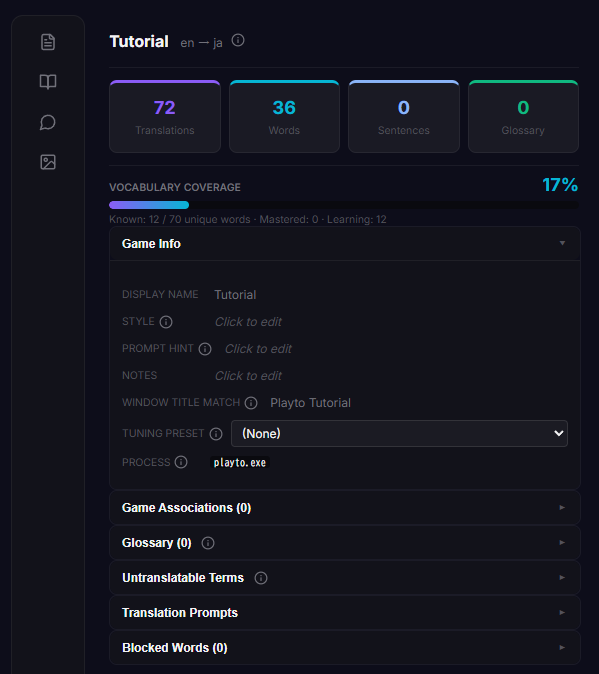
Every game gets its own profile, made for you the first time Playto sees its window. It holds the capture setup, a glossary, and a list of terms that should be left alone rather than translated.
You don’t create it and you don’t have to fill it in. It’s just there, waiting to be useful.
Leave it empty at first
For the first hour or two of a new game, add nothing.
The model is working from general knowledge and whatever it picks up from the genre, and that’s enough to get you oriented. Adding entries before you know which words actually recur is time spent on terms that turn out to appear once.
The rule: wrong three times
Then a pattern shows up. A character’s name keeps coming out as a common noun. An invented item alternates between two renderings so you’re never sure they’re the same thing. A place name gets translated into something faintly comic.
When the same term has gone wrong three times, pin it. Source term on one side, the reading you want on the other. From then on it’s that, everywhere, for the rest of the playthrough. Five seconds of typing against a hundred future lines is the best trade in the app.
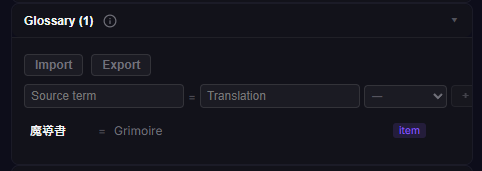
There’s a companion to this for things that shouldn’t be translated at all. Character names you want left in the original, item codes, short interface strings. The common ones are handled already; the list is for the game-specific cases.
Knowing when to stop
Most of what you read doesn’t need to feed back into anything. If a translation was odd but the meaning was clear, keep playing.
A profile with twenty well-chosen entries beats one with two hundred speculative ones, and the difference in how the game reads is not subtle. After a few sessions of this, proper nouns stay put, interface strings stop getting mangled, and the game is noticeably cleaner than it was on night one. That improvement is yours and it stays with that game.
The next beat is what happens after you stop playing.
Playto has a free version on Steam, which is the cheapest way to see whether a game you own reads well.