Your first 30 minutes with Playto
The first beat of what using Playto is like. This one is the opening evening, end to end, so you know what you’d be walking into.
If you’re here for the learning method rather than the app, how to learn Japanese with video games is the other half of this.
1. Two screens of setup
Install from Steam, launch Playto, and the setup wizard asks for one thing: languages. The interface language, the language in your games, and the language you want meanings shown in. That’s the whole first screen.
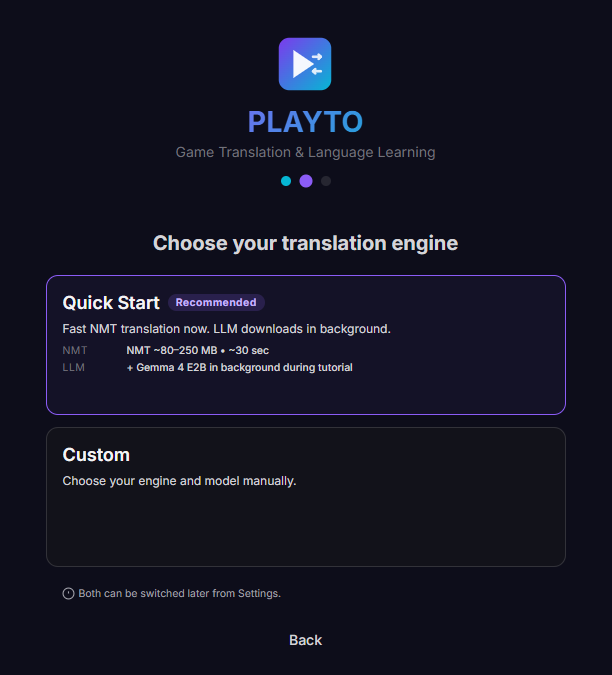
The second screen downloads the translation engine. That is all the setup there is.
2. You don’t have to sit and watch the download
What arrives first is the model that runs while you play, about a gigabyte of it. A second one, for word meanings and dictionary entries, downloads in the background afterwards, so you’re never waiting on that part. Which models you use is changeable later.
The screen is built around not trapping you while the first one lands. You can pause and resume without losing progress, or pick “Look around the app first” and explore while it runs. Once it finishes, “Try it on your own screen” takes you straight into a capture, which is the fastest route to finding out whether this works for you.
If you’d rather have a guided run first, there’s a session tutorial that walks the whole loop against a mock game scene: setting up a game profile, drawing a capture region, watching a line translate, saving a word. It doesn’t need the engine, so you can do it while the download is still going. If you skip it now, it’s still there later under Settings.
3. Your first real capture
Launch the game you actually want to play and press Start.
How Playto reads the screen is the choice that matters more than anything else in Settings.
- Fixed Region watches one rectangle you draw once. This is the right pick for visual novels and any game with a dialogue box that stays put. It’s the mode the free version runs.
- Cursor Follow reads the text around your mouse pointer. Good for menus, item descriptions and tooltips, and for anything where the text you care about moves.
- Window (Full) follows the whole game window. Newer, still in beta, and the least fiddly to set up.
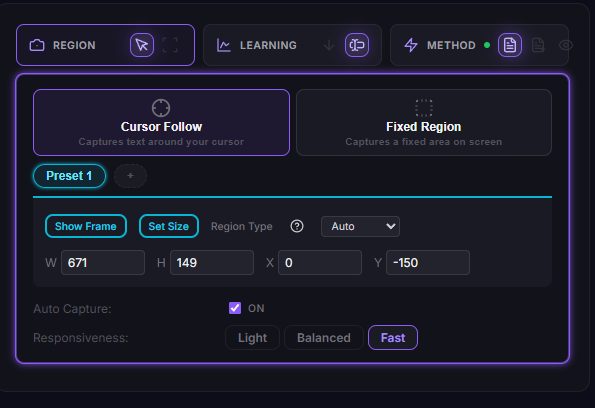
The free version gives you Fixed Region and one region at a time, which is enough to find out whether screen reading works on your game at all. Cursor Follow and Window come with the paid version.
Start with Fixed Region if your game has a dialogue box. Everything else can stay on its defaults.
4. “How did that go?”
After your first capture, Playto asks you directly, with three answers.
Say it translated well and you get a short tour of the rest of the app: Home, Log, Words, Practice, and where the Guide lives. Say translations appeared but weren’t great and it takes you to the fixes for the common quality problems instead. Say nothing was translated and it opens the troubleshooting guides.
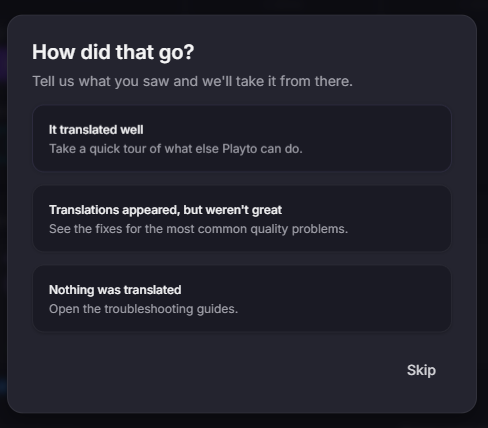
Worth answering rather than skipping. The three paths are genuinely different, and picking the one that matches what you saw is faster than hunting through documentation for the right page.
5. Watching the Log fill up
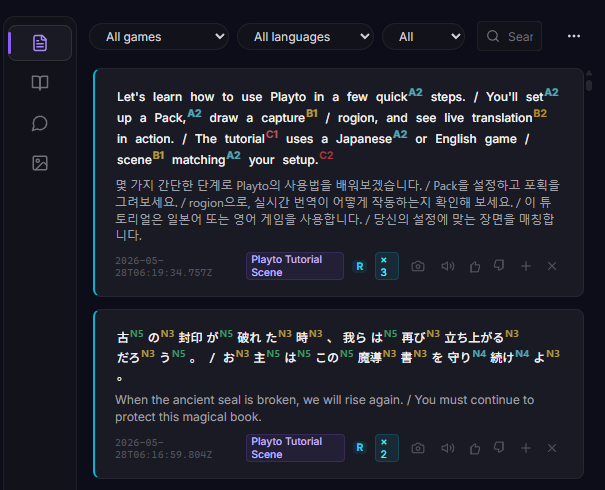
Captured lines appear in the Log, original on top, translation below, in the order they arrive. Words carry their difficulty level, so you can see at a glance what’s above and below you. Click a word for its meaning, or save the whole line for review later.
That’s the loop. Once you’ve seen a few captures land, the first session has done its job.
What’s next
The next beat is the part you repeat: what to save, what to skip, and why saving less is the thing that keeps this alive.
Playto has a free version on Steam if you want to run the first evening yourself before deciding anything.