
New capture mode: Window (Full), now in beta
Playto now has a third capture mode: Window (Full). It’s Standard-only and shipping as a beta.
Pick your game window, hit start, and that’s it — Playto keeps reading text from the whole window, no region setup needed.
Why a third mode
Until now Playto had two capture modes: Cursor Follow, which reads around your mouse cursor, and Fixed Region, which keeps reading a set area like a subtitle bar.
I thought those two covered most cases, but playing through a variety of games myself, I kept running into games where you just can’t predict where text will appear. Dialogue at the bottom, item descriptions on the right, tooltips at the cursor, system messages in the center. In games like that, Fixed Region turns into a constant cycle of re-drawing the region.
Window mode is the answer to that problem: it doesn’t ask you to pick an area at all. The whole window is the target.
Doesn’t reading the whole window get heavy?
It does, if you do nothing about it. So we do a few things.
First, sentences that haven’t changed don’t get re-translated. Playto reuses the previous result, so full-window mode doesn’t mean the entire screen goes through the AI every pass. Only the parts that changed actually get processed.
The other piece is scene-change detection. When the screen changes drastically, the old meaning hints are cleared immediately. This came straight from my own play sessions during development — nothing felt worse than hints from the previous screen lingering on the new one. A brief moment of blank is far better than stale text sticking around.
Where it shines, and where it doesn’t
The goal we’ve been polishing toward is: meaning hints that feel good whenever the screen isn’t moving much. Dialogue scenes, menus, shops, standing still while exploring. Most of the time you spend actually reading text in a game falls into one of those.
On the flip side, the overlay hides itself while the camera is moving hard. I don’t think anyone reads meaning hints mid-sprint, so we made that trade deliberately. If you want to follow combat logs, Fixed Region with a tight area is still the better tool.
The beta label is there because this tuning isn’t finished. Games move their screens in very different ways — what feels great in the games on my machine might hide too eagerly or linger too long in another genre. If the behavior feels off in your game, please tell us.
My favorite setup: hidden by default, shown on demand
The way I like to use it: keep the overlay hidden and let capture and translation run in the background.
Click the eye icon in the header to hide the overlay — nothing shows on screen, but reading continues behind the scenes.


When you hit text you want to read, hold the shortcut key (F11 by default). Meaning hints show while you hold it, and disappear when you let go. A short tap switches to always-on and back.
Your game screen stays exactly as it is, and you summon hints only in the moments you need them. If having a translation constantly in view makes you lean on it too much — if you want to try reading on your own first — I think this rhythm fits the way you’re learning better.
One caveat: right after a screen change, reading may not have caught up yet. If nothing shows when you hold the key, give it a beat. It’s the same pipeline as always running underneath, so once processing finishes, the hints appear.
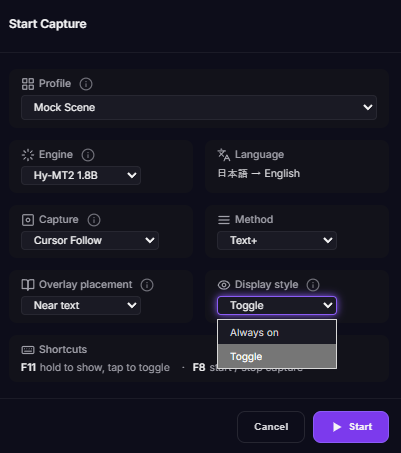
If you want to start in this style from the beginning, set Display style to Toggle in the start dialog and the session begins with the overlay off.
How to try it
Pick Window (Full) under Settings → Capture Area. The in-app guide also summarizes how the three modes differ.
Which of the three modes fits depends on the game and how you play, so switch between them and see. Lately I’ve been playing almost everything in window mode.